
The Amber CLI can be used as a runtime or as a compiler.
Command Line Interface
The Amber CLI syntax uses subcommands, like the Git CLI:
This output is generated from the 0.6.0-alpha version.
Usage: amber [OPTIONS] [INPUT] [ARGS]... [COMMAND]

Commands:
  eval        Execute Amber code fragment
  run         Execute Amber script
  check       Check Amber script for errors
  build       Compile Amber script to shell code
  docs        Generate Amber script documentation
  completion  Generate shell completion script
  test        Run Amber tests
  help        Print this message or the help of the given subcommand(s)

Arguments:
  [INPUT]    Input filename ('-' to read from stdin)
  [ARGS]...  Arguments passed to Amber script

Options:
      --target <TARGET>    Target shell to compile to (bash, zsh, ksh, bash3.2) [default: bash]
      --no-proc <NO_PROC>  Disable a postprocessor
                           Available postprocessors: 'bshchk'
                           To select multiple, pass multiple times with different values
                           Argument also supports a wildcard match, like "*" or "b*chk"
  -h, --help               Print help
  -V, --version            Print version
For detailed usage instructions, refer to the Amber usage guide.
Running Amber Code
The following command will simply execute hello.ab as a script file. Amber code will be compiled to the shell and then executed all in one go:
$ amber run hello.ab
Hello world!
Alternatively, if the file contains a shebang line and has the executable bit set, it can be run like this:
#!/usr/bin/env amber
echo("Hello world")
$ ./hello.ab
Hello worldCompiling Amber Scripts
There are times when you prefer to just compile Amber code to a script, for example when dealing with cron jobs or deploying to environments without Amber installed:
$ amber build input.ab output.shYou’ll notice that the compiled script is immediately callable; hence, there’s no need to add executable permissions using chmod, for instance. Amber grants the permission automatically.
Target Shells (New in 0.6.0)
By default, Amber compiles to modern Bash. However, you can specify a different target shell using the --target flag. Supported targets are bash (default), zsh, ksh, and bash3.2 (legacy Bash, default on macOS).
$ amber build --target zsh input.ab output.zshPreventing Execution with Bash
If you write an Amber script with a shebang pointing to amber, there is a risk that someone might accidentally execute it with bash instead. To prevent this, you can add a check at the top of your script using the following technique:
// 2> /dev/null; exit 1

# Your Amber code here
echo("Hello world")
This line is valid in both Amber and Bash:
- In Amber,
//starts a comment, so the line is ignored - In Bash,
//is treated as a directory that not exists,2> /dev/nullsuppresses errors, andexit 1terminates the script with an error code
If you want to run just a small code snippet, you can do that as well:
$ amber eval '
import * from "std/text"
echo(uppercase("Hello world!"))
'
HELLO WORLD!
Testing
Amber comes with a built-in test runner. You can define named test blocks in your code and execute them using the amber test command.
$ amber testFor more details on writing and filtering tests, please refer to the Testing guide.
Syntax Highlighting
VS Code as well as Zed now have built-in LSP integration.
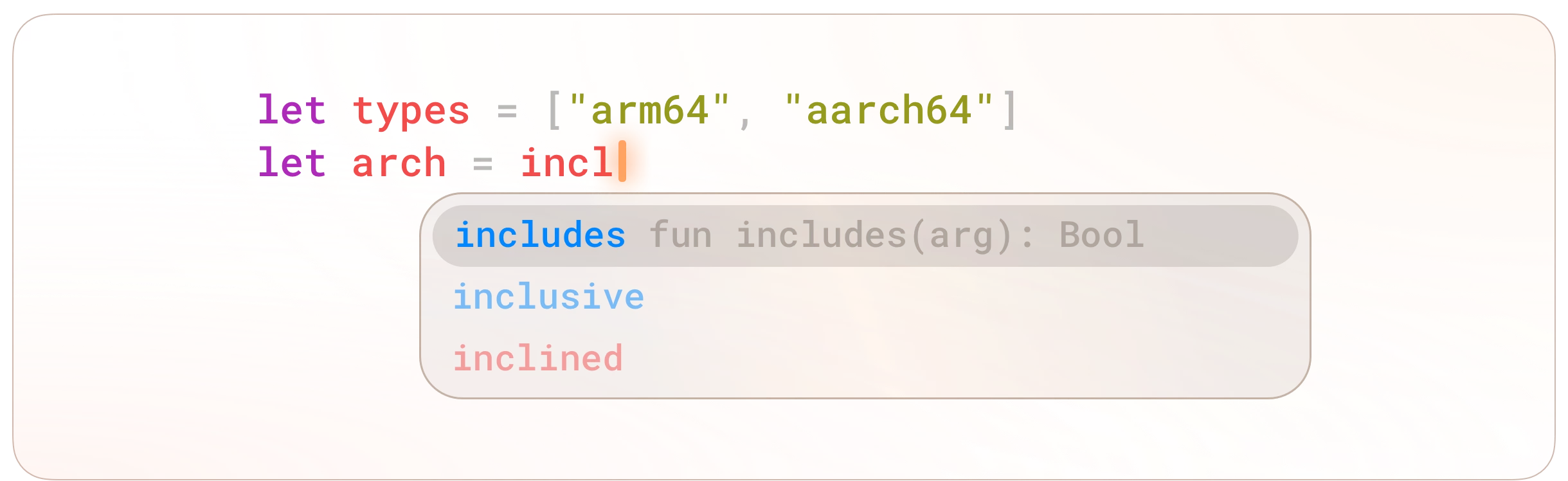
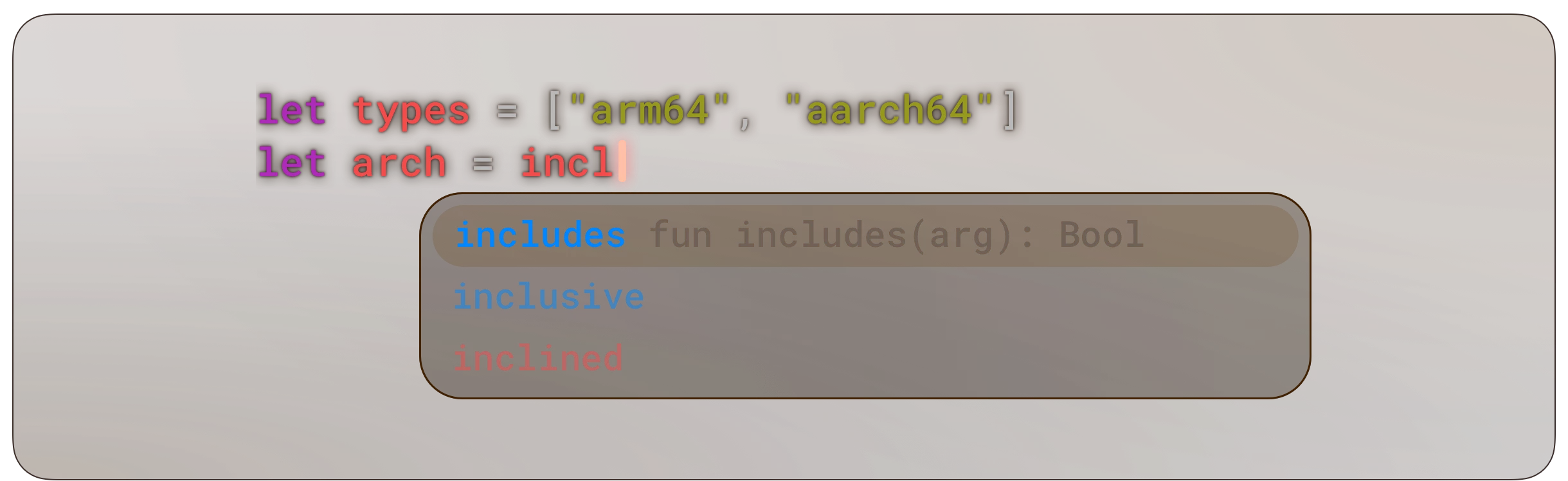
Here is a list of plugins that support syntax highlighting for Amber language.
| Icon | Name | Location |
|---|---|---|
 |
Helix Editor | Native Support |
 |
Nova | Nova extensions |
 |
Vim | Our extension repository |
 |
VS Code | VSC Marketplace or Our extension repository |
 |
Zed | Zed extensions or Our extension repository |
Other interesting commands
Postprocessors
Amber supports postprocessors that can optionally run after compilation to enhance your scripts. These tools are not included with Amber but will be executed automatically if they are installed on your system.
bshchk
bshchk is a runtime Bash dependency checker. It analyzes your compiled Bash script to ensure all external commands used are available at runtime, preventing runtime failures due to unavailable dependencies.
For installation instructions and usage details, please refer to the bshchk README.
Minification
Additionally, the --minify option compresses the generated code to reduce its size:
$ amber build --minify input.ab output.shGenerating Amber Documentation
The following command extracts comments prefixed with /// (triple slashes) from a single Amber file, and generates a Markdown file for documentation, by default in the docs subdirectory:
$ amber docs stdlib.abGenerating Bash Completion Scripts
The following command generates a completion script:
$ amber completionDisabling the Optimizer
The optimizer is still being improved. If you encounter any issues with optimization, you can disable it using an environment variable:
AMBER_NO_OPTIMIZE=1 amber ...Custom Header and Footer
Amber allows you to customize the header and footer of compiled scripts using environment variables:
AMBER_HEADER: Path to a custom header file that replaces the default header. The header can use template variables:
{{ version }}- Amber compiler version
AMBER_FOOTER: Path to a custom footer file that appends to the end of the script. The footer can use:
{{ version }}- Amber compiler version